


Using Flipgrid's "Ideas" in a Primary Classroom
One of Flipgrid’s most powerful features is often overlooked. “Ideas” has a similar feel to Instagram or Facebooks’ “Stories.” You can even swipe from left to right!
One of Flipgrid’s most powerful features is often overlooked. “Ideas” has a similar feel to Instagram or Facebooks’ “Stories.” You can even swipe from left to right!
These quick bursts of thinking can help to ignite a larger conversation in your topics. But, if you’re looking for an efficient and easy way to integrate “Ideas,” don’t think about it too hard…let your students do the thinking!
Above is an example of a lesson I recently did with my first graders. I prompted them with a word problem, then asked the entire class to attempt to solve the problem using only mental math. I knew that only a few kids would be able to handle solving it - but that was exactly what I wanted. So, after about a minute, I asked anyone who thought they knew the answer to raise their hand. Once I had a student who was able to answer correctly, I gave them permission to go and record an “Idea” on Flipgrid. In the “Idea” video, they simply stated what the answer was to the problem - nothing more. So now, all of my students understood where they needed end up - but the real question was could they explain how to get there? So, this is where they worked out the problem on a whiteboard. After practicing what to say, the entire class went onto Flipgrid and started explaining their thinking and strategies. The students knew if they didn’t end up with the answer in the “Idea,” then they were incorrect and had to keep trying. It was neat to see was how the class worked everything out. There were 2-3 similar strategies used to solve, but not one was used more than the other. We all arrived at the same answer, but with “Ideas,” we reached a higher level of thinking. — 👓

Immersive Reader in a Primary Classroom (Pt. #1)
Every once in a while, an #EdTech tool comes around that really ups the ante. In most cases, these tools are easily identified with certain grade levels, and then it’s up to the teacher’s creativity to find ways to implement it.
Every once in a while, an #EdTech tool comes around that really ups the ante. In most cases, these tools are easily identified with certain grade levels, and then it’s up to the teacher’s creativity to find ways to implement it.
Microsoft’s newest addition to the Office 365 suite is a complete changer. You can find it throughout the suite, but for today’s purpose, I’ll be sharing how my first graders used it with Word Online.
Let’s face it…reading and understanding a first grade writing piece often involves the use of a decodable pen, turning the paper around all sides, and the use of a translator. How teachers are able to understand any of this is truly a work of art. But, what if we were able to provide an opportunity for our students to hear back what they wrote before they handed it to us? What if they could hear their own mistakes, and go back to edit their work until it was correct - and THEN submit it to us? If you’re like me, you are shaking your head, “YES!”
For our last writing assignment, I had my students take their rough drafts and type them directly into Word Online. I didn’t ask them to show me ahead of time - in fact, I wanted them them to make mistakes. The reason why, was because immediately after they finished typing, I had them open Immersive Reader which allows them to hear back what they wrote.
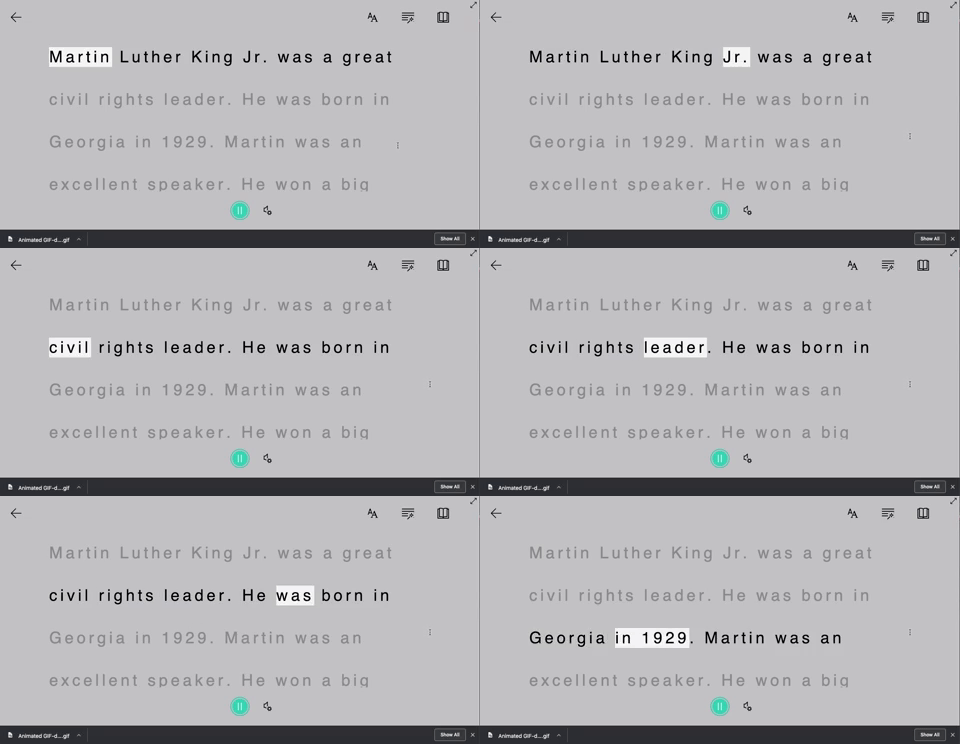
If they had mistakes, they were able to go back, edit them, and then correct them - all without my help! But wait…it get’s better…
At this point in our year, I am teaching the students the importance of checking their parts of speech. With a few simple clicks, they can have Immersive Reader check that, too.

But what if you have a student who just needs some help pronouncing some words? Immersive Reader can even break apart syllables!

Stay tuned to see how we transformed an ordinary rubric to make it more #interACTIVE! 👓 -J